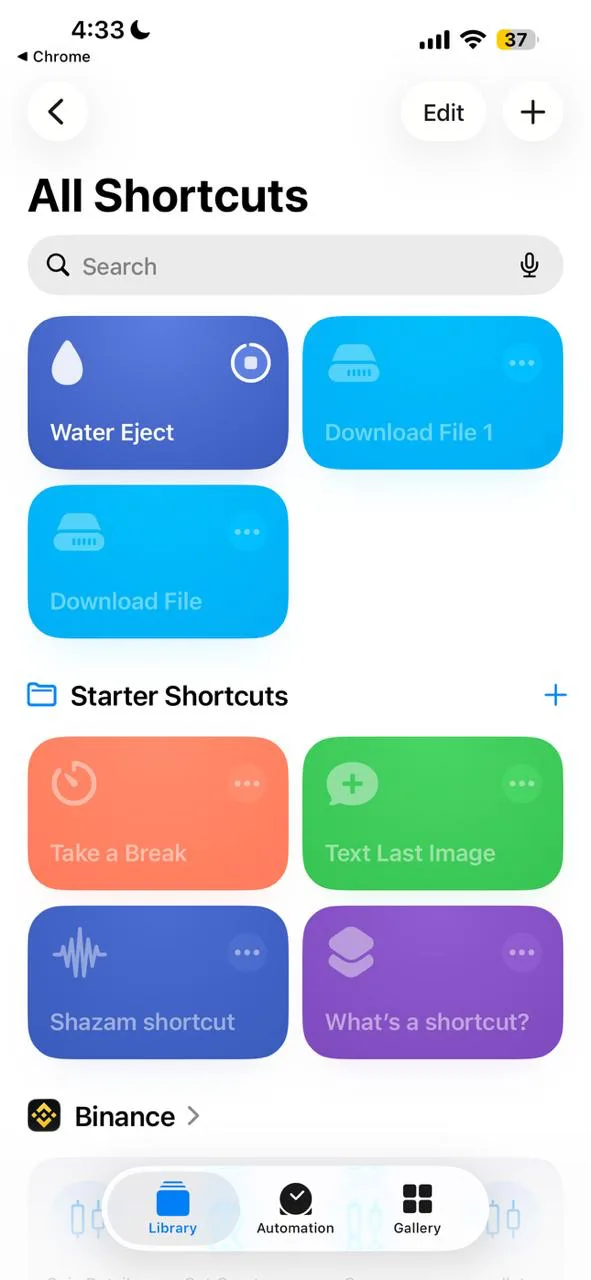
Remove water from your iPhone speaker in seconds. This quick and safe tool helps you expel water from the speaker grill of your iPhone to restore clear audio and protect the functionality of your device.


It is a custom iOS shortcut developed to remove water and dislodge dust from the iPhone and iPad speakers. It works by playing a low-frequency sound that helps push water and dust out of the speakers, helping keep the audio quality intact.
Unlike the Apple Watch, the iPhone does not have a built-in water ejection feature. However, iPhone users can still use this helpful function through a custom-developed tool, called Water Eject Shortcut, that is simple and convenient to use.
Below is a complete step-by-step guide on how to add the Water Eject feature to your iPhone:
Open your iPhone's web browser and download the Water Eject Shortcut from the button.
Tap the link on your iPhone. It will automatically open in the Shortcuts app (pre-installed on iOS, or you can download it for free from the App Store). The Shortcut will be installed instantly on your iPhone.
When the Shortcut page opens, tap the 'Add Shortcut' prompt when it appears.
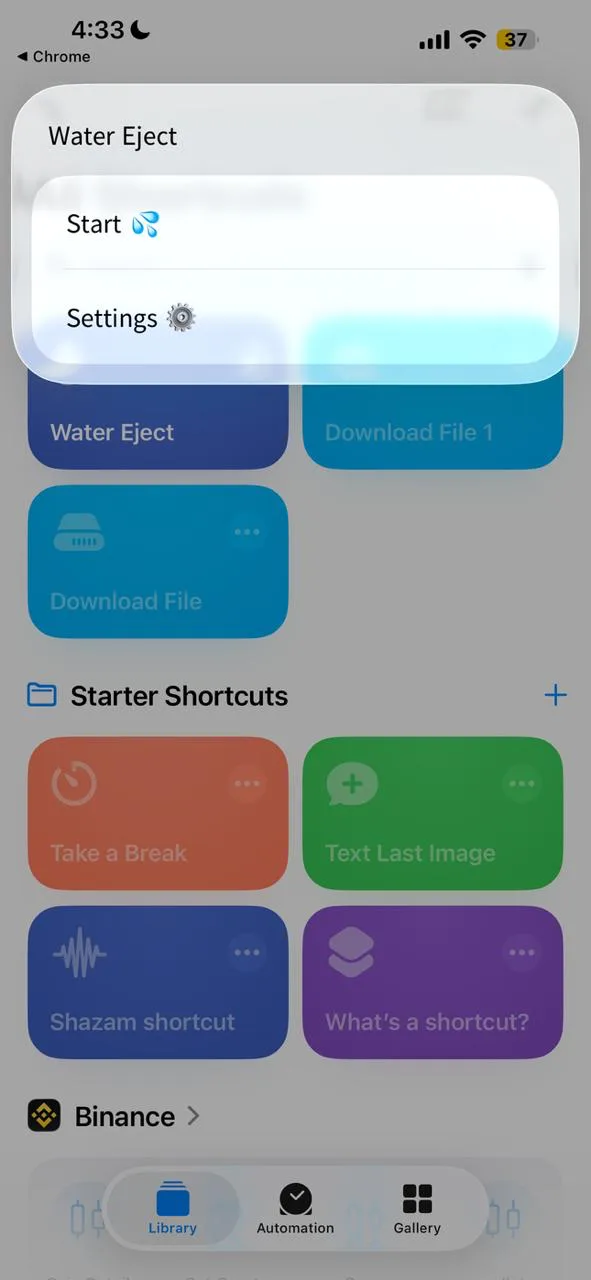
Open the Shortcuts app, search for Water Eject, and click on it to activate the shortcut or simply say, 'Hey Siri, run Water Eject.'
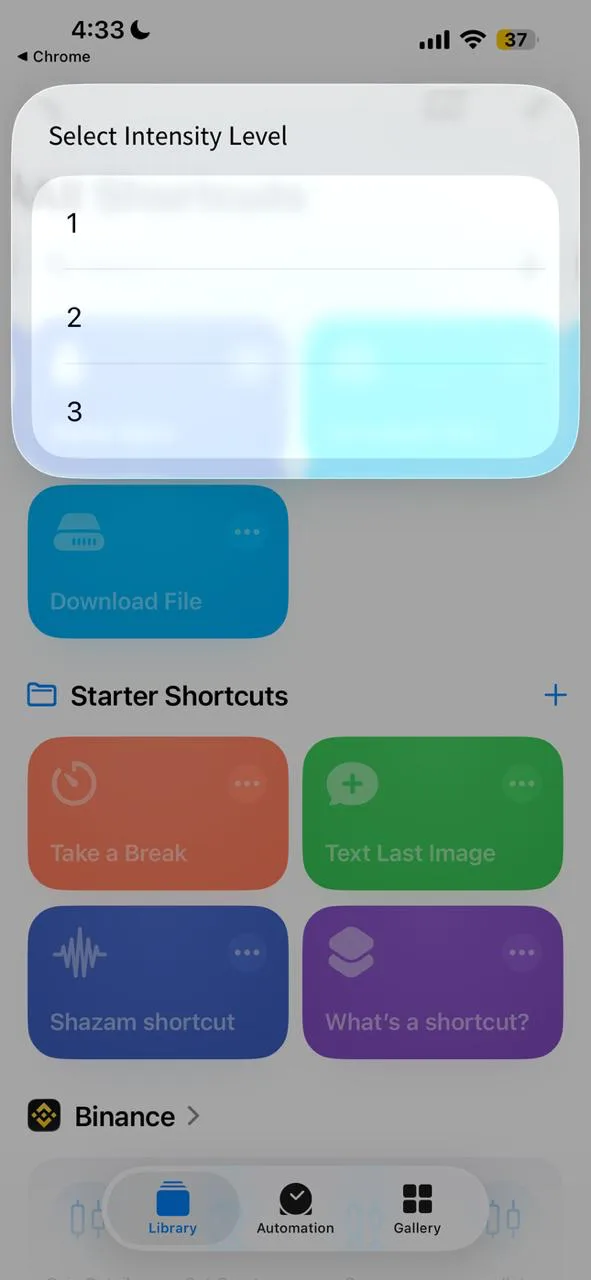
Finally, tap 'Begin Water Ejection' to start removing water from your iPhone's speakers.
Imagine you're enjoying a coffee or a cold drink while scrolling through your iPhone. Suddenly, your hand slips and liquid spills onto your phone, leaving the speakers wet and sound muffled. Moments like this highlight why having a Water Eject Siri Shortcut on your iPhone can be incredibly useful.
Here's why it is a must-have shortcut for iPhone users:
The shortcut expels water and dust from your iPhone and iPad speakers in a short time. Its low-frequency sound ensures efficient water removal while protecting your device's speaker quality.
Using the shortcut is quick and easy. Simply tap the Shortcut or say, 'Hey Siri, Run Water Eject' and it will start removing water and dust from your iPhone or iPad instantly. There is no complicated setup involved - just a one-tap solution to restore your audio in a few seconds.
Unlike the Apple Watch, which has a built-in water ejection feature, iPhones don't have such an amazing tool. You can not find it in the Shortcuts Gallery; instead, it is custom-developed, especially for iPhone users.
The iPhone Water Eject is completely free to use. You can download it easily through the iCloud link and start using it immediately - no subscriptions, hidden fees, or in-app purchases required.
Dry your phone first using a towel or cloth to remove excess moisture before activating the shortcut.
Run Water Eject multiple times if needed to remove stubborn water or dust particles that may require a second or third run for better results.
Use the Shortcut with Siri by saying, Hey Siri, run Water Eject' for faster and emergency access to the Water Eject feature.
It's recommended to add the shortcut to your phone's Home Screen. For that, click the 3 dots and select 'Add to Home Screen' for quick, one-tap access whenever required urgently.
Great shortcut, easy to install, does what it says. Happy with it.
Never writing a review but this one deserves it. Saved my iPhone's speakers twice this week alone.
Why doesn't Apple just build this in? Until they do, this shortcut is the next best thing.
Downloaded today, tested it, love it. Adding to the ever-growing list of shortcuts I can't live without.
Tested with a few drops of water intentionally. Cleared it up fast. Good to know it works.
Phone fell in dog's water bowl. Ran this three times and it sounds perfect now. Five stars!
Download the Water Eject Shortcut now. It's free, safe, and takes seconds.
Download Free Shortcut: Used in inventory systems to track specialized bearings or fasteners.
Occasionally, unique strings of letters and numbers are generated by digital marketers or developers as placeholder text. These are used to test indexing speeds, crawl behavior, and how search engine algorithms handle completely novel queries that have zero historical search volume. How to Investigate a Highly Specific Code
is engineered for portability. Its slim yet wide profile (14cm depth) makes it easy to fit on a cluttered desk or slip into a backpack, ensuring you can bring your music wherever you go. Compact and Durable bksp274 10
Based on cross-referenced technical databases and manufacturer catalogs (including parallels to ISO and JIS standards), the is primarily identified as a high-pressure metal banjo fitting or a hydraulic adapter used in fluid power systems. This article provides a deep dive into its specifications, applications, installation techniques, and troubleshooting advice.
The code is a signal that key decisions must be revisited. It’s a "redo" button for the character’s mission. : Used in inventory systems to track specialized
: The numeric sequence "274" isolates the exact record, asset class, batch number, or file box within a larger system.
Part numbering systems are designed to compress complex engineering metadata into a scannable format. In the case of BKSP274 10, the code breaks down into specific functional segments: How to Investigate a Highly Specific Code is
I don't have context for what "bksp274 10" refers to. I'll make a reasonable assumption and produce a clear, professional report template that you can adapt: I'll treat "BKSP274-10" as a course or project code (e.g., a module, product, or dataset) and create a structured report covering background, objectives, methods, results, analysis, conclusions, and recommendations. If you want a different interpretation (e.g., lab experiment, product review, or incident report), tell me and I'll revise.
Parts in the BKSP series are engineered to serve heavy-duty industrial sectors. They are common across three core fields: 1. HVAC and Damper Systems
The core of the search term is BKSP-274 . This is a , a unique identifier assigned to a DVD/Blu-ray release by its production studio. These codes are essential for collectors and viewers to find exact titles. In this case, the "10" at the end of the query is actually the volume number included in the video's title, as will be explained below.
Typically refers to the physical dimensions (274mm) or a specific revision in the design sequence.